Appearance
Setting Up AA2Reborn with CubeCoders AMP
CubeCoders AMP is a web-based game server management panel. This guide walks you through getting an AA2Reborn server running using the community AMP template.
Linux Only
The AA2Reborn AMP template is Linux only. AMP must be configured to use Docker — the template runs the server binaries via Wine inside the cubecoders/ampbase:wine-stable Docker image.
Before You Start
You'll need:
- AMP installed on a Linux host with Docker or Podman enabled
- A Server Secret from tracker.aa2reborn.com — log in, go to your profile, and create a server entry to get one
- Your server's public IP address — find it at ipinfo.io/ip
- Ports 1716/UDP (game) and 1717/UDP (query) open in your firewall and forwarded if you're behind a router
Step 1 — Add the Template Repository
The AA2Reborn template isn't built into AMP — you need to add it first.
In your AMP panel, go to:
*ADS → Configuration → Instance Deployment → Instance Management
Add the following repository:
demorgon989/AMPTemplates:mainClick Fetch, then do a hard refresh (Ctrl+Shift+R).
TIP
If the templates don't show up in the next step, click Fetch once more and refresh again.
Step 2 — Create an Instance
Go to Create Instance and select AA2Reborn from the game dropdown.
AMP will download the server files from the AA2Reborn CDN on first start — this may take a few minutes.
Step 3 — Configure Required Settings
Open the instance and go to the Configuration tab. At minimum you need to fill in these three fields under AA2Reborn Auth:
| Setting | Where to get it |
|---|---|
| Server Secret | Your profile on tracker.aa2reborn.com |
| External IP | ipinfo.io/ip |
| Auth Port | Must match your Game Port (default: 1716) |
Without these, your server will start but won't appear on the public list.
You'll probably also want to set your Server Name under Server Settings before going live.
Step 4 — Start the Server
Hit Start on the instance page. Check the Console tab for live output — if something goes wrong on startup it will show there.
Once running, your server should appear in the AA2Reborn server browser within a minute or two.
Ports Reference
| Port | Protocol | Purpose |
|---|---|---|
1716 | UDP | Game port |
1717 | UDP | Query port |
The query port is always game port + 1. Both must be open and forwarded.
Troubleshooting
Server doesn't appear on the public list
- Double-check your Server Secret, External IP, and that Auth Port matches Game Port
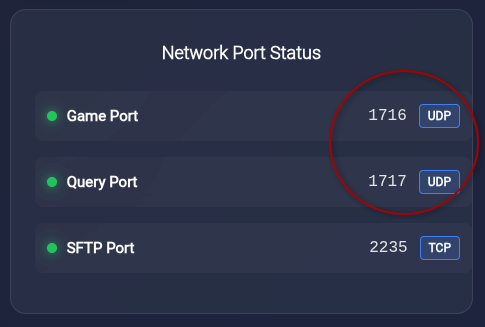
- Make sure ports 1716 and 1717 are open and forwarded in your host firewall and router AMP automatically assigns available ports at instance creation — these may not be 1716/1717. Check the ports AMP assigned by looking at the AA2Reborn dashboard in AMP, then make sure your Game Port and Auth Port in the configuration match what AMP has assigned. It's easier to update the config to match AMP than the other way around.
Instance fails to start
- Check the AMP Console tab for error output
- Confirm Docker is properly configured and AMP has internet access for the initial file download
Template doesn't appear in Create Instance
- Return to Configuration Repositories, click Fetch, and hard refresh
For a full breakdown of every configuration option — including Ultimate Mod settings — see the AMP Configuration Reference.